Direct Answer
You can schedule a Facebook post using Meta Business Suite for Facebook Pages or Facebook’s built-in scheduling option for Groups. Create your post, choose a future date and time, and confirm the schedule. Page admins can manage scheduled posts through Meta Business Suite, while Group admins and moderators can manage scheduled Group posts directly from Facebook. Third-party tools also offer additional scheduling features.
Posting on Facebook at the right time does not mean you need to sit in front of your phone or computer every day. Facebook provides built-in scheduling tools that let you prepare content ahead of time and publish it automatically. You can also use third-party Facebook scheduling tools when you need bulk publishing, content recycling, or a calendar for several social networks.
The exact process depends on where you want to publish the content. A Facebook Page uses Meta Business Suite for a full scheduling workflow. A Facebook Group has its own scheduling option for admins and moderators. Professional-mode profiles also have their own publishing features to schedule content for later.
In this guide, you’ll learn how to schedule a Facebook post from desktop and mobile, how to schedule Facebook Page posts and Group posts, how to manage scheduled content, and which third-party tools are worth considering.
Let us get started.
- Can You Schedule a Facebook Post?
- How to Schedule a Facebook Post
- How to Schedule a Facebook Profile Post on Mobile
- How to Schedule a Facebook Page Post
- How to Schedule a Facebook Page Post on Mobile
- How to Schedule a Facebook Group Post
- How to Schedule a Facebook Group Post on Desktop
- How to Schedule a Facebook Group Post on Mobile
- How to Manage Scheduled Posts on a Facebook Profile
- How to Manage Scheduled Posts on Facebook Pages
- How to Manage Scheduled Posts on Facebook Groups
- Best Facebook Post Scheduling Tools
- Facebook Scheduling Tools Compared
- Final Thoughts
- FAQ
Can You Schedule a Facebook Post?
Yes. You can schedule Facebook posts for a future date and time. For Facebook Pages, Meta Business Suite is the main native scheduling tool. Facebook Groups also have native scheduling for admins and moderators. The Facebook mobile app provides scheduling options for supported Page, profile, and Group publishing workflows.
For a Page, open Meta Business Suite, create your post, select Schedule, choose the date and time, and confirm. For a Group, open the Group, create your post, select the scheduling option, choose a date and time, and save it.
Third-party tools such as SocialBee, Buffer, SocialPilot, Later, Vista Social, Social Champ, and RecurPost provide additional scheduling features. These tools are particularly helpful when you manage several Pages or social networks.
One important point is that Facebook scheduling is not a universal feature. The options you see depend on whether you are posting to a Page, Group, or profile, as well as the permissions attached to your account.
How to Schedule a Facebook Post
Do you have a professional mode profile? If so, you can schedule content on your profiles easily.
Step 1: Sign in to Facebook
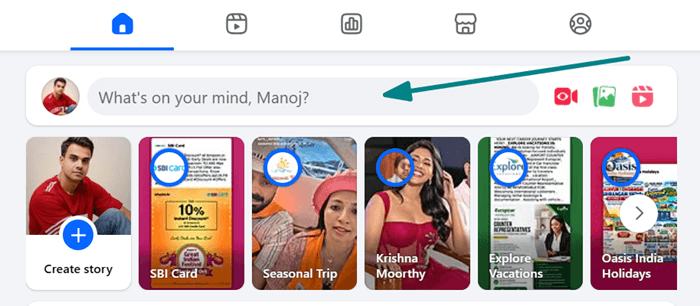
Sign in to your Facebook account. Click anywhere in the post composer from your home screen. This will automatically open the post composer for professional mode profiles.
Do not assume that every personal profile has the same options. Facebook features depend on the account type and current product rollout.
Step 2: Create a post to schedule
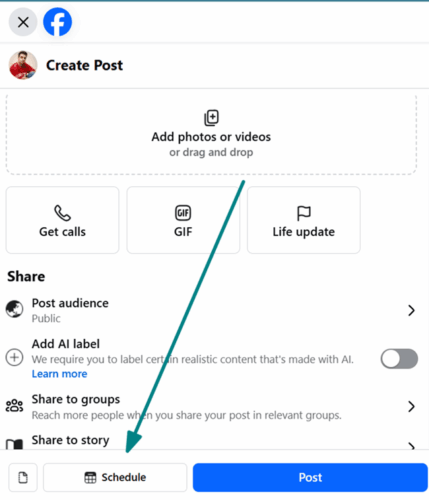
Enter your texts. Upload photos or videos as you need. Facebook allows you to share the same content on groups you belong to. However, if you selected the group sharing option, the scheduling option will disappear. It means that if you want to share the same content on the profile and groups, only instant sharing will work.
Still, you can schedule a Facebook profile post and add it to your story from the same window. Facebook will also show a post preview on the right side.
Finally, click on Schedule at the bottom.
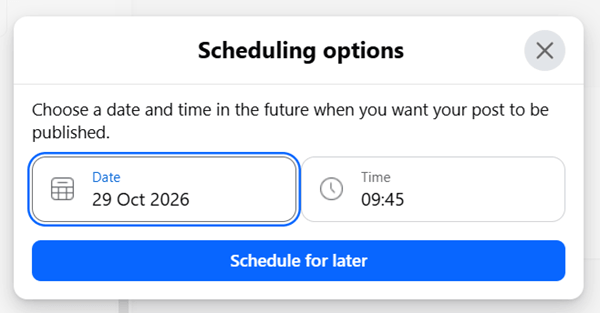
Set a date and time. You can schedule a Facebook schedule for up to 30 days in advance. Tap Schedule for later to save.
Meta restricts third-party tools from scheduling content on Facebook profiles. So, only Facebook’s native scheduling will work for your professional mode profiles.
How to Schedule a Facebook Profile Post on Mobile
Professional-mode profiles can schedule posts through the mobile app as well. Here’s what you should do to schedule the content,
Step 1: Open the Facebook app on your mobile
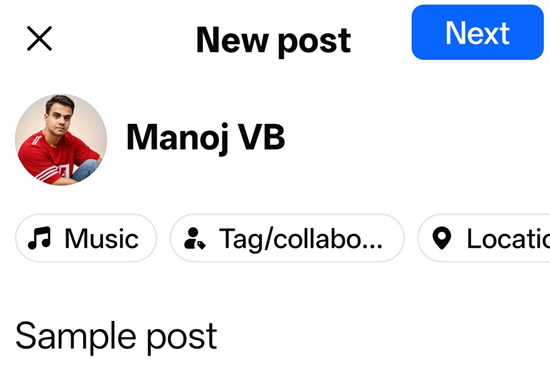
Open Facebook’s official app on your mobile. Tap somewhere in the post composer to start writing.
Enter your content and upload an image if needed. Hit the Next button to schedule.
Step 2: Set a schedule
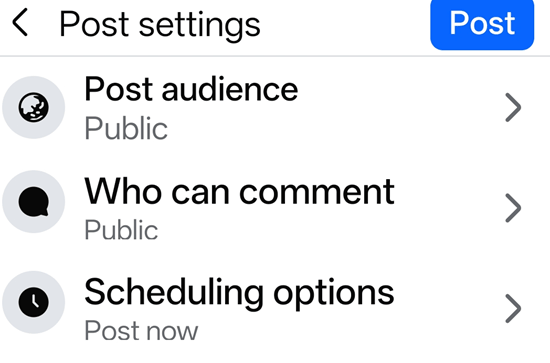
Open scheduling options and set a schedule for your post. Click on Schedule again. That’s it.
Your post is saved. It will be shared at the scheduled date and time.
How to Schedule a Facebook Page Post
Scheduling a Facebook Page post is the most straightforward Facebook scheduling workflow. Meta Business Suite is designed for Page management, so you get more than a simple publish button. You also get a calendar, scheduled content management, and tools for working with Facebook and Instagram content.
Step 1: Open Your Facebook Page
Log in to Facebook and switch to the Page where you want to publish the content.
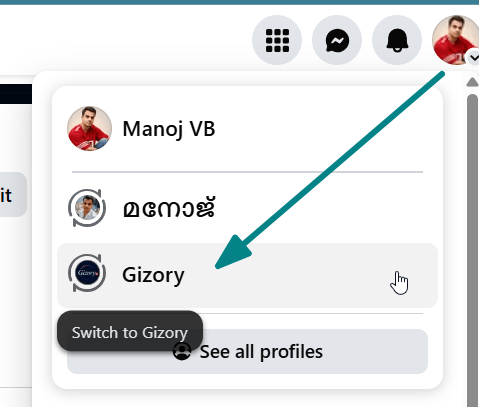
If you manage several Pages, check the Page name and profile image before creating the post. This small check is worth doing every time you work with a client account or several brands.
Step 2: Open Meta Business Suite
From your Page, open Meta Business Suite from the left sidebar.

Meta Business Suite brings Facebook and Instagram publishing into one workspace. It is free to use for supported Page management tasks.
Step 3: Create Your Post
Select Create post and choose Facebook as the publishing destination.
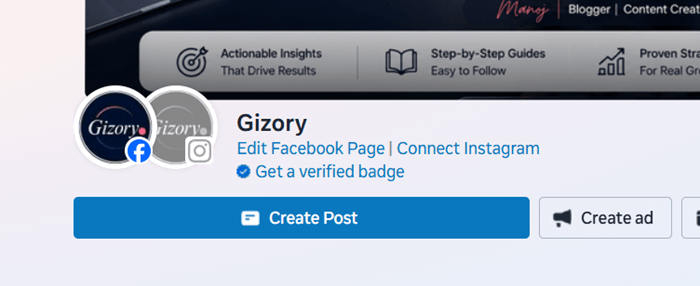
Write your caption. You can then add an image, video, link, or other supported media.
Think about the post as a complete piece of content before scheduling it. Check the spelling, link, image, call to action, and formatting.
Step 4: Open Scheduling Options
Look for Scheduling options in the post composer.
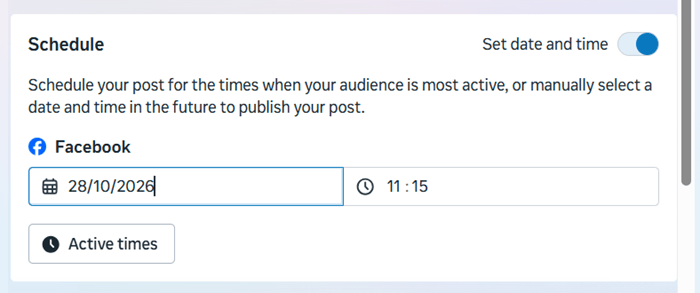
Choose the option that lets you set a date and time. Facebook will then show a date and time selector.
Step 5: Choose the Date and Time
Select the date and time when you want Facebook to publish the post.
If Meta shows recommended or active times for your Page, you may use those suggestions as a starting point. Your own audience data gives you a better basis for testing publishing times than a generic schedule.
Step 6: Schedule the Post
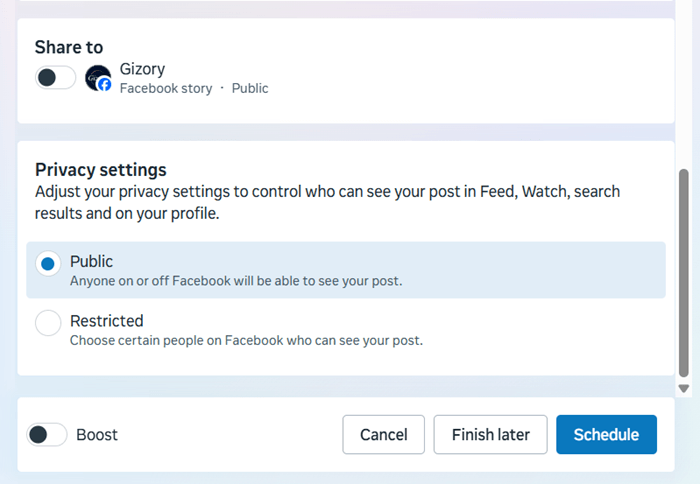
Review the post one more time. Then click Schedule.
Your post should now appear in the scheduled-content area or Planner.
How to Schedule a Facebook Page Post on Mobile
Meta lets you schedule Facebook page posts from a phone in simple steps. Let us check how it works.
Step 1: Open Facebook app
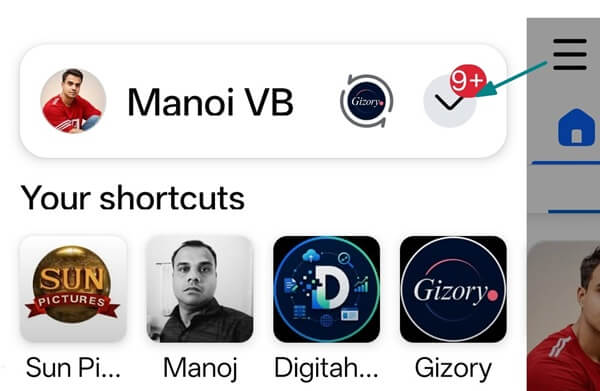
Open Facebook from your Android or iPhone. Tap the three-line icon from the top left corner of your home feed. A slide panel will open with the shortcuts containing pages you frequently open.
Step 2: Select your page

Facebook will show all your business pages now. Select your page to proceed.
Step 3: Enter texts
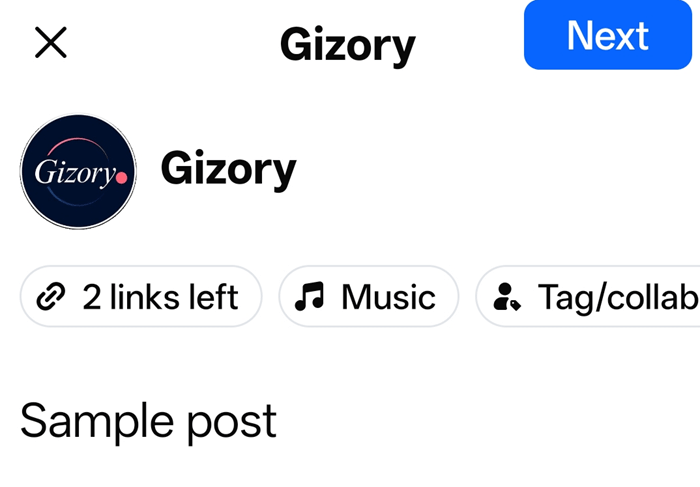
Write your post. Add links if needed. Then, click on Next.
Step 4: Schedule date and time
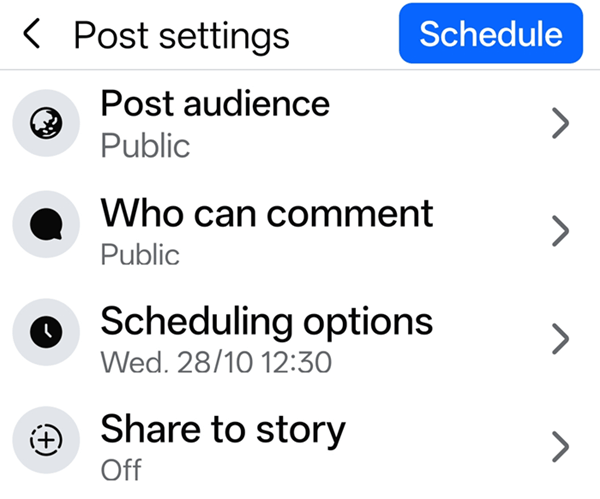
In the next screen, expand Scheduling options. Set a date and time when you want to share the content. Then, Facebook will bring you back to the previous screen.
Click on Schedule again.
That’s it.
Your Facebook page post is successfully scheduled. Facebook will share your content at the chosen time.
How to Schedule a Facebook Group Post
Facebook Group scheduling works a little differently from Page scheduling.
Group admins and moderators can schedule posts using Facebook’s native scheduling feature. Regular members don’t have access to this option. Meta also limits third-party tools from directly scheduling posts to Facebook Groups.
How to Schedule a Facebook Group Post on Desktop
Facebook groups help you share content with a large group of people at once. Most of these groups are niche-specific or created based on interests such as content promotions, tech discussions, and travel ideas.
Step 1: Write a post

Enter your text and link. Upload a media file from your computer. Facebook automatically fetches your social media snippet from the link and displays a preview at the bottom.
Tap the calendar icon in the bottom right corner.
Step 2: Set a date and time
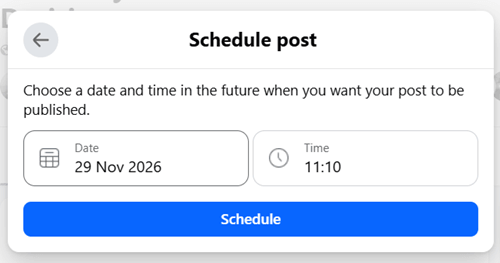
Enter a date and time. You can schedule a Facebook group post for up to 60 days in advance. Tap the Schedule button to save.
How to Schedule a Facebook Group Post on Mobile
Follow these steps to create and schedule Facebook group posts on a mobile.
Step 1: Open your Facebook group
Open the Facebook app on your mobile first. Visit the Groups icon at the top of your home feed.
Under Your Groups, search and locate your target group. As I mentioned earlier, only admins and moderators can schedule Facebook group posts. Tap the group name to open it.
Step 2: Write your post

Create a post that includes text, images, and a link. Check the preview to ensure that it fetches your featured thumbnail, title, and meta description correctly.
If it shows an incorrect image, open the Sharing Debugger and enter your current post URL. Resubmit it until it fetches the exact featured image you want. Then, return to the Facebook group, refresh the page, and submit the URL again. It should display the post preview now as expected.
Step 3: Schedule the Post
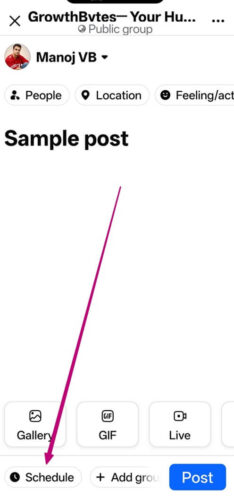
Click on Schedule. Enter a date and time to share the content. As on desktop, you can schedule group posts for up to 2 months in advance in the mobile app, too.
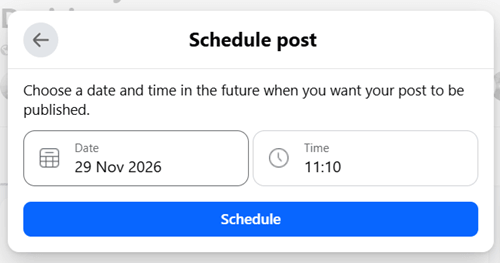
Tap the Schedule button twice to save.
How to Manage Scheduled Posts on a Facebook Profile
If you schedule posts on your Facebook profile, you may need to check or change them before they go live.
Step 1
Open Facebook and go to your profile. Look for the Dashboard if you use professional mode.

Step 2

Find the Content menu from the left sidebar. Visit the Content library and the Scheduled tab from the main screen. This will show all scheduled posts on your Facebook profile.
Step 3
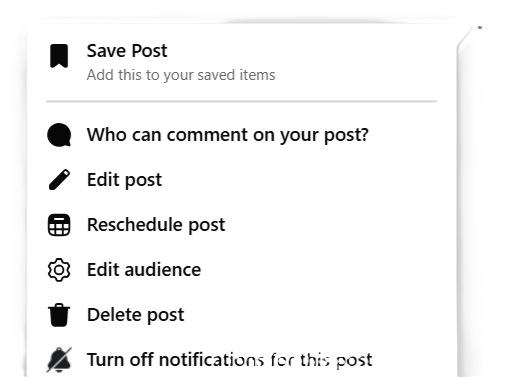
Tap the three dots icon on the right side. A menu will appear with several options such as edit post, reschedule post, edit audience, delete post, etc.
Make necessary changes.
Save.
How to Manage Scheduled Posts on Facebook Pages
After you schedule a Facebook Page post, you can review it and make changes before it goes live.
Step 1
Open your Facebook Page and visit Meta Business Suite from the left sidebar.
Step 2

Visit the Content menu. This will take you to another screen where you can manage all published, scheduled, and draft posts, including reels, stories, clips, text posts, etc.
Step 3

With Posts and Reels selected, click Scheduled on the main screen. This will list all scheduled text posts and reels on your page.
Step 4

Find the post you want to edit. Tap the three-dots icon next to it. Go with the Manage Post option.
Then you will have options to edit the post, move it to drafts, duplicate it, reschedule it, or delete it. Choose an appropriate option to proceed.
It’s a good idea to check your scheduled posts regularly. You may spot a typo, find that a link needs updating, or decide that a post should go out at another time. A quick review also helps you avoid publishing outdated information or promoting something that is no longer relevant.
How to Manage Scheduled Posts on Facebook Groups
Facebook lets Group admins and moderators review scheduled posts before they are published.
Step 1

Open your Facebook group and find the Scheduled Posts menu from the left sidebar.
Step 2
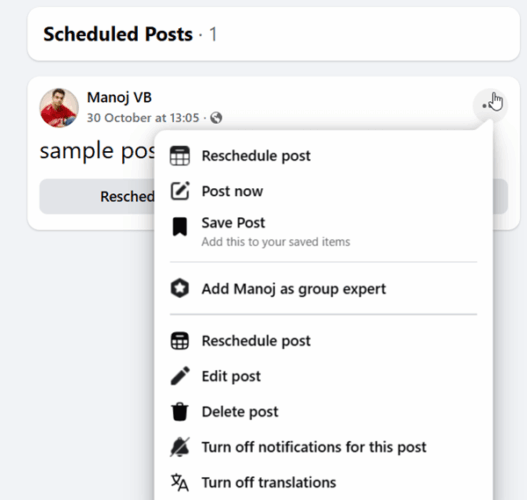
Select a scheduled post to review its details. You may have options to edit the content, change the publishing date and time, publish it right away, or delete it.
| Heads up: Some of the links in this post are affiliate links. This means I may earn a small commission at no extra cost to you if you make a purchase. |
Best Facebook Post Scheduling Tools
Facebook’s native tools are enough for a lot of users. However, a third-party Facebook scheduler becomes attractive when you manage several social networks, need bulk publishing, want evergreen content recycling, or work with a team.
These are the best Facebook scheduling tools to manage your marketing campaigns seamlessly.
1. SocialBee
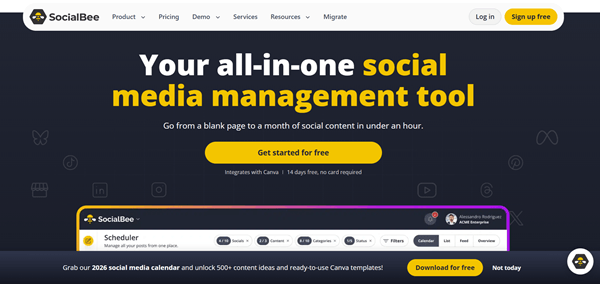
SocialBee is built around content organization, scheduling, and evergreen publishing.
One of its notable features is the use of content categories. You can create categories for blog posts, promotions, questions, tutorials, and curated content. Each category can have its own publishing pattern relating to time of posting, link shortener, UTM source, and more.
SocialBee also supports evergreen content recycling. You can make certain categories evergreen, or keep selected posts in a rotation and set rules for when they should stop appearing.
This approach works well for Pages with a large library of evergreen articles, tutorials, tips, and educational posts.
SocialBee supports scheduling content on Facebook pages and profiles. It comes with analytics, engagement, and account tagging. You can schedule and publish content on pages directly and on profiles via mobile reminders.
Key Features
Pricing: $24/mo
SocialBee is my favorite social media automation tool. You can read my honest experience in this SocialBee review. I created multiple workspaces and categories to manage campaigns for my multiple websites and automate shares at regular intervals.
They have a premium customer support and a 14-day free trial in all subscription plans. You will also get 16% off on their annual plans.
2. Vista Social

Vista Social is a social media management tool that helps you create, schedule, and manage Facebook posts from one dashboard. You can schedule posts for multiple Facebook Pages, upload images and videos, and manage content through a visual calendar.
It also supports bulk publishing, post queues, optimal posting times, and a media library.
Vista Social also includes tools for managing comments, messages, and Facebook reviews. Teams can create approval workflows before posts go live, which is handy when several people manage a Page.
For Facebook Groups, direct publishing is currently restricted by Meta. Vista Social lets you schedule a reminder for your phone, so you can publish the post manually when the notification arrives.
Key Features
Pricing: $80/mo
Vista Social is a powerful social media management suite for businesses. It may be expensive, but you can monitor and respond to reviews on popular review platforms, track Reddit conversations, create link-in-bio pages, and so on. Read our Vista Social review to find out what you can do with this tool.
They have fast support and a 14-day free trial. They also offer 20% discount on annual plans.
3. Buffer

Buffer helps you schedule and manage Facebook content from one dashboard. You can plan posts for Facebook Pages and Groups, add images or videos, preview content, and set a publishing time in advance. Buffer also supports Facebook Reels, Stories, and multi-photo posts.
Its content calendar makes it easy to see upcoming posts and keep your Facebook schedule organized. You can also save post ideas, create drafts, add tags, and collaborate with team members through approval workflows. Buffer provides Facebook analytics covering reach, impressions, engagement, follower growth, and top-performing posts.
For Facebook Groups, Buffer uses notification publishing. You schedule the post in Buffer and receive a phone notification when it is time to publish it manually.
Key Features
Pricing: $5/mo/channel
Buffer has a premium customer support and a 14-day free trial. They also offer a free plan with 3 channels and up to 10 scheduled posts each.
4. SocialPilot

SocialPilot helps you schedule and manage Facebook posts from one dashboard. You can connect multiple Facebook Pages, create posts, preview them, and choose when they should go live.
It also supports bulk scheduling, so you can upload a CSV file and schedule up to 500 posts at once.
SocialPilot also includes a content calendar, post queues, AI-assisted caption writing, team collaboration, approval workflows, and Facebook analytics. Its analytics dashboard lets you track reach, engagement, audience data, and post performance.
For businesses and agencies managing several Facebook Pages, these features make it easier to plan content, keep the publishing schedule organized, and review results from one place.
Key Features
Pricing: $20/mo
SocialPilot is a great social media marketing platform for content recycling and team collaboration. They have premium support and a 14-day free trial.
5. Later

Later helps you plan and schedule Facebook content from one dashboard. You can connect a Facebook Business Page, create posts, add images or videos, and choose a date and time for publishing.
Its Visual Planner gives you a calendar view of upcoming content, making it easier to organize your Facebook schedule.
Later also includes a Media Library where you can store and organize images and videos. You can create drafts, manage content across social platforms, and review post performance through analytics. It also offers Best Time to Post suggestions based on your account data.
For Facebook Groups, Later does not support direct publishing. Its current Facebook integration focuses on Business Pages, so Group admins will need to use Facebook’s native scheduling tools for Group posts.
Key Features
Pricing: $18.75/mo
Vista Social is a multipurpose social media tool for scheduling and influencer marketing. They have a premium customer support and a 14-day free trial in all subscription plans.
6. Social Champ

Social Champ is another social media scheduling tool to create, schedule, and manage Facebook posts from one dashboard. You can schedule posts for a specific date and time, add images and hashtags, create post queues, and view your content in a calendar.
Its bulk upload feature lets you schedule a large batch of posts using a CSV file.
Social Champ also supports recurring posts, AI-powered content tools, analytics, team approvals, and content management across several social networks. You can edit, reschedule, delete, or publish scheduled posts directly from the Calendar or Queue.
For Facebook Groups, Social Champ uses a reminder-based system. You schedule the post in Social Champ and receive a notification on your phone when it is time to publish it manually in the Group.
Key Features
Pricing: $23.20/mo
Social Champ has premium customer support and a 7-day free trial. They also offer 30% discount on annual plans.
7. RecurPost

RecurPost is a popular social media tool for scheduling and managing Facebook content. You can schedule posts for Facebook Pages, create a content calendar, upload posts in bulk, and set recurring schedules for evergreen content. Its drag-and-drop calendar also makes it easy to move posts to another date or time.
One of RecurPost’s main features is content recycling. You can add evergreen posts to a library and set a schedule to publish them again at selected times. It also supports CSV bulk uploads, post previews, best-time scheduling, team approvals, analytics, and social inbox features.
For Facebook Groups, RecurPost uses a notification-based workflow. You schedule the post in RecurPost, receive a notification when it is due, and tap the notification to publish it through Facebook.
Key Features
Pricing: $9/mo
RecurPost is an affordable social media scheduling tool for small businesses and blogs. They have premium support and a 14-day free trial. You will get 2 months free with an annual subscription.
Facebook Scheduling Tools Compared
| Tool | Page Scheduling | Bulk Scheduling | Evergreen/Recurring | Content Calendar | Group Workflow |
|---|---|---|---|---|---|
| Meta Business Suite | Yes | Limited | No | Yes | Native scheduling |
| SocialBee | Yes | Yes | Yes | Yes | No |
| Buffer | Yes | Yes | Queue-based | Yes | Notifications |
| SocialPilot | Yes | Yes | Yes | Yes | Notifications |
| Later | Yes | Yes | Limited | Yes | Notifications |
| Vista Social | Yes | Yes | Yes | Yes | Notifications |
| Social Champ | Yes | Yes | Yes | Yes | Notifications |
| RecurPost | Yes | Yes | Yes | Yes | Notifications |
If you are running a business and need to recycle content automatically, use a third-party marketing tool. It helps you automate content indefinitely on all supporting channels.
Final Thoughts
Scheduling Facebook posts is a simple way to keep your Page or Group active without having to publish something every day. If you manage a Facebook Page, Meta Business Suite gives you the basic tools to create posts, choose a date and time, and manage your content calendar. Group admins and moderators also have a built-in option to schedule group posts.
If you manage several Pages or publish across multiple social networks, a third-party scheduler may save you more time. Tools such as SocialBee, Buffer, SocialPilot, Vista Social, Later, Social Champ, and RecurPost offer features such as bulk scheduling, content calendars, recurring posts, analytics, and team collaboration.
The key is to plan your content before you schedule it. Check each post, choose a suitable publishing time, and review your results. With a simple schedule and regular updates, you can keep your Facebook content consistent without making it a daily task.