Direct Answer
Rank Math Analytics helps WordPress users monitor SEO performance from their dashboard. It shows search traffic, impressions, clicks, keywords, CTR, average position, winning and losing keywords, and indexing data. You can use these reports to find pages that need updates, track keyword movements, identify traffic opportunities, and measure whether your SEO efforts are improving your website’s visibility in Google.
Rank Math Analytics brings important SEO data into your WordPress dashboard. You do not need to switch between WordPress, Google Search Console, and Google Analytics every time to check your search performance.
Once you connect the required Google services, you get reports about search traffic, impressions, clicks, keywords, rankings, content performance, indexing, and others within WordPress.
But the real value comes from knowing what these numbers mean and what to do with them.
In this guide, I will explain Rank Math Analytics from the ground up. You will learn how to set it up, understand each report, track keywords, find rising or declining keywords, check indexing problems, monitor AI traffic, and use the data to improve your WordPress SEO.
Let us get started.
| Heads up: Some of the links in this post are affiliate links. This means I may earn a small commission at no extra cost to you if you make a purchase. |
- What Is Rank Math Analytics?
- What Does Rank Math Analytics Track?
- How to Set Up Rank Math Analytics
- Rank Math Analytics Dashboard Explained
- Site Analytics
- SEO Performance
- Winning and Losing Keywords
- Winning and Losing Posts
- AI Visibility
- Keywords
- Rank Tracker
- Rank Math Index Status
- Bonus: AI Link Genius
- How to Find Underperforming Content with Rank Math
- How to Use Rank Tracker to Track Your Custom Keywords
- How to Use Rank Math Analytics to Improve Traffic
- How Frequently Should You Check Rank Math Analytics?
- Why Rank Math Analytics Data May Not Match Google Analytics
- Rank Math Analytics Frontend Stats Bar
- Rank Math Analytics: Free vs PRO
- Final Thoughts
- FAQ
What Is Rank Math Analytics?
Rank Math Analytics is an analytics module inside the Rank Math SEO plugin for WordPress. It brings SEO and website performance data into your WordPress admin area by connecting with services such as Google Search Console and Google Analytics. This gives you a central place to review organic search performance and content-level data.
The module is more than a simple traffic counter. It shows your search impressions, clicks, CTR, average position, ranking keywords, individual post traffic, optimization scores, and indexing information. You will also get access to Rank Tracker, AI traffic filtering, country-specific data, and deeper post analytics.
The key idea is simple: Rank Math Analytics helps you see what is happening with your website in search and identify pages that deserve attention.
It also helps you move from raw numbers to practical SEO work. For example, a page receiving thousands of impressions but very few clicks may need a better title and meta description. A page ranking in positions 11–20 may need content improvements and stronger internal linking.
That makes the analytics dashboard more useful when you use it as part of a regular SEO workflow rather than checking it only when traffic drops.
What Does Rank Math Analytics Track?
Rank Math Analytics combines several types of SEO information. The exact reports you see depend on your Rank Math plan and the services connected to your website.
The main data points include:
- Search traffic
- Search impressions
- Search clicks
- Click-through rate
- Average position
- Total ranking keywords
- Winning keywords
- Losing keywords
- Winning posts
- Losing posts
- Keyword position groups
- Content optimization scores
- Post-level SEO data
- PageSpeed information
- Google indexing status
- Google crawls information
- Schema information
- Internal and external link counts
- AI search traffic
- Keyword rankings
- Pages ranking for keywords
By default, Rank Math displays analytics data for the last 30 days. However, you can change this period for up to 6 months, depending on your plan.
How to Set Up Rank Math Analytics
Before you start using Rank Math Analytics, you need to connect the required Google services. The Setup Wizard helps you connect all required services in a step-by-step process.
The basic process looks like this:
WordPress Dashboard → Rank Math SEO → Dashboard → Analytics
Enable the Analytics module if it is not active.
Then go to:
Rank Math SEO → General Settings → Analytics
From here, you can configure or reconnect your Google connections and analytics properties.
Connect Your Rank Math Account
Start by connecting your Rank Math account. This allows Rank Math to access Google services that are required to connect your analytics data.
Follow the instructions shown during the connection process and make sure you connect the property associated with your website.
Connect Google Search Console
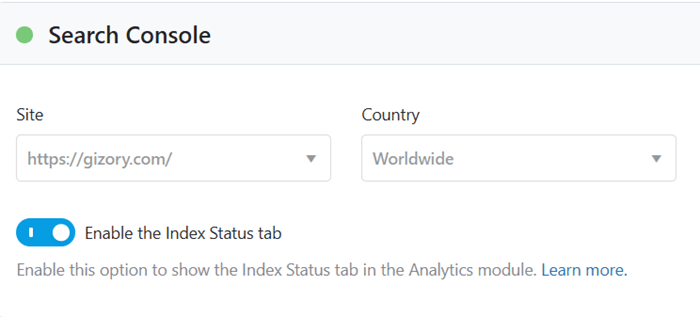
Google Search Console supplies important search performance information.
After connecting your Google account, choose your verified Search Console property.
Search Console data provides information such as:
- Search queries
- Impressions
- Clicks
- CTR
- Average position
- Indexed URLs
Rank Math uses this information throughout its Analytics reports.
Connect Google Analytics 4
Google Analytics 4 adds website traffic information to the reports.
Go to the Setup Wizard or Analytics settings and select your GA4 property and web data stream.
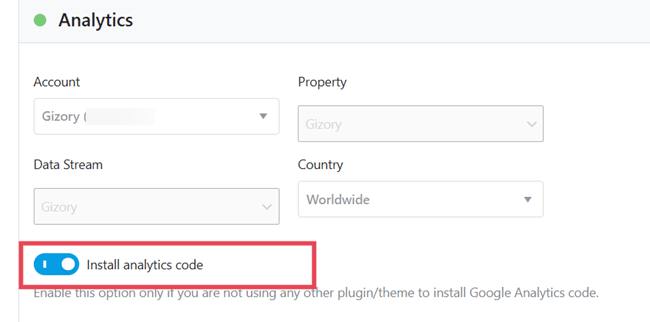
Rank Math also provides an option to install the Analytics tracking code on your website if another plugin or your theme does not already handle it.
Be careful here. Connecting a GA4 property to Rank Math does not automatically mean that GA4 is tracking your visitors. For that, you should insert the GA4 tracking code in the theme files or ask Rank Math to install the code.
While connecting your Analytics property, enable the “Install analytics code” option. Then, Rank Math will install the G4 tracking code on your site.
Choose a Country
On the same screen, you will see an option to set your country to view traffic data.
For example, a website targeting users in India may want to examine its search performance in India rather than worldwide data.
This setting is particularly helpful for websites that receive traffic from several countries.
Rank Math Analytics Dashboard Explained
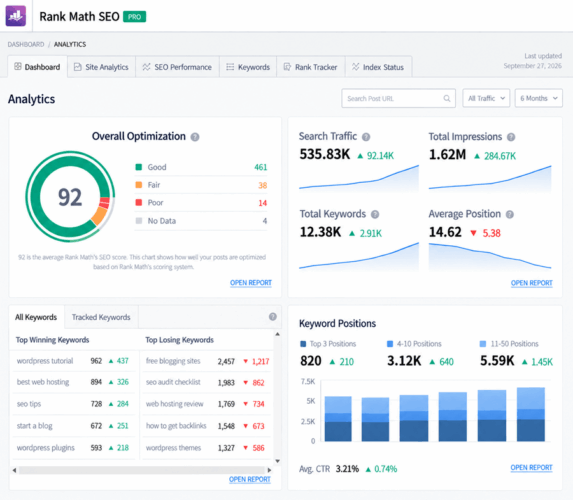
The Rank Math Analytics dashboard gives you a quick view of your website’s search performance.
Expand Rank Math menu from the left pane of your WordPress site and open Analytics. This page shows a quick overview of your overall optimization. At the top, you will see your site’s optimization score.
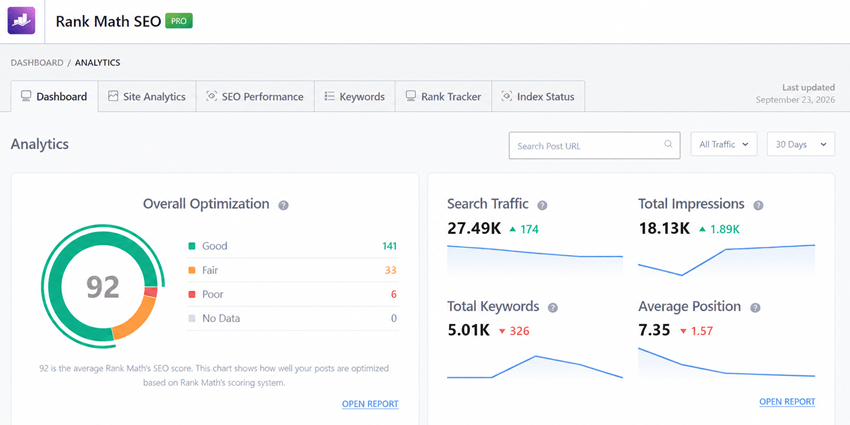
On the top right side, you will see the total search traffic, total impressions, total ranking keywords, and average ranking position. Each metric shows an increase or decrease in demand.
Scroll again to locate your top winning keywords, top losing keywords, and tracked keywords positions.

The graphical chart shows you how many keywords are ranking in the top 3 positions, 4-10 positions, and 10 to 50 positions for the selected period.
You can open the report in each section to view details.
Site Analytics
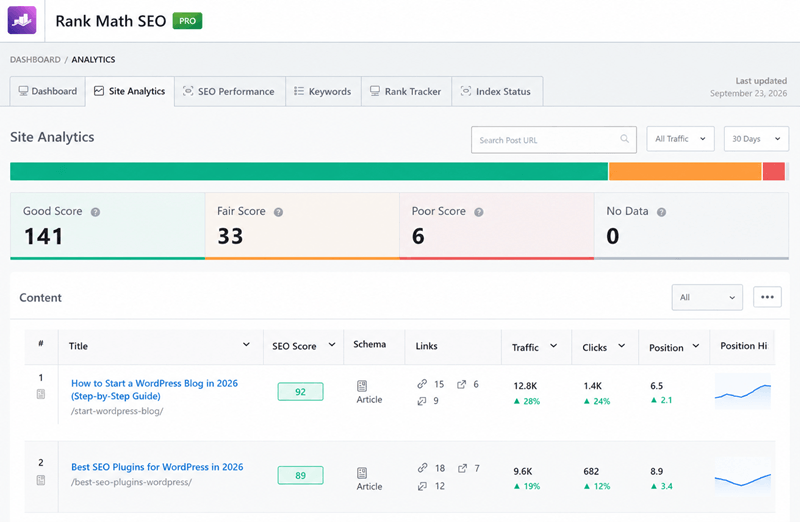
The Site Analytics section gives you a broad view of the SEO scores assigned to your content. Head to Rank Math > Analytics > Site Analytics to get your SEO data.
Rank Math groups content into four categories:
- Good
- Fair
- Poor
- No Data
The score is based on Rank Math’s on-page SEO analysis. A high Rank Math score means the page passes most of the plugin’s recommended checks. However, it does not guarantee a high Google position.
Scroll down to locate individual post metrics such as schema, internal, external, and incoming links, individual post traffic, number of clicks from search queries, ranking position, and position history.
You can search posts by keywords and change the analytics period from 7 days to 6 months from the top right corner.
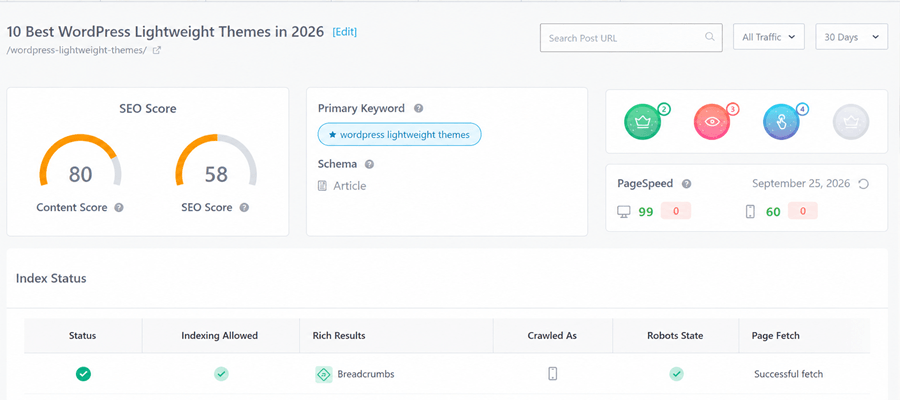
Click an individual post link to view its detailed metrics. A new page will open with its content score, SEO score, target keyword, page speed score, etc.
You will also know whether the page is indexed by Google, whether indexing is allowed, and the Robot.txt status.
Scroll down to view a chart showing search trends on the current post. This will tell you whether the content demand is increasing or decreasing. If your traffic declines, update your content by adding more keywords and information.

At the bottom, you will see all ranking keywords on this post, along with their search impressions, clicks, position, and position history for each keyword.
Rank Math’s Site Analytics is a great place to easily track your posts and pages. It will tell you whether your content gets traffic and for what keywords. Monitor trends and make necessary changes to improve their search visibility.
SEO Performance
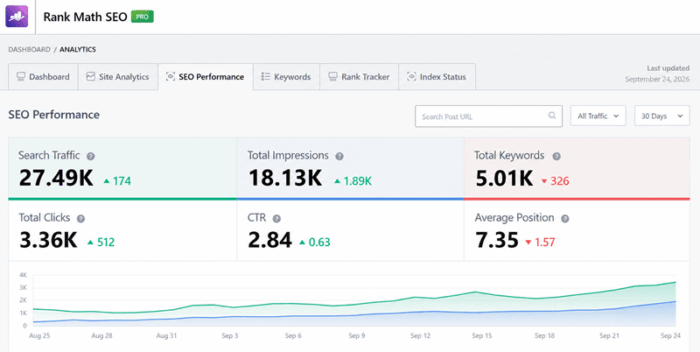
The SEO Performance overview gives you a quick look at key search metrics.
You may see:
- Search traffic
- Impressions
- Clicks
- Total ranking keywords
- CTR
- Average position
The report also uses a graph to show trends over time. This is where you should look for patterns rather than single-day changes.
For example, imagine your website had 50,000 impressions in one month and 58,000 the next month. That tells you search visibility increased.
Now, suppose clicks stayed almost flat.
That creates another question: why are more people seeing your pages without clicking them?
The answer may involve ranking positions, search intent, titles, snippets, or changes in the SERPs. Your content probably does not match the search intent. Or your SEO title is not click-worthy.
Search Google with your keyword. Find what type of content appears at the top. Are they informational or commercial? Make sure that your post matches the search intent.
Then update your title to encourage users to click your link. Learn how to write SEO titles that drive more clicks from search engine results.
Winning and Losing Keywords

Rank Math Analytics highlights keywords that gained or lost positions.
Winning keywords are queries that moved upward during the selected period.
Losing keywords moved downward, or you are losing traffic on them.
This report is valuable because it gives you a starting point for content analysis.
Suppose a keyword moved from position 18 to position 9. That page is now on the first page and deserves attention.
You may want to improve the content, add relevant internal links to reduce your bounce rate, or update supporting sections. This helps you retain current positions and beat competitors.
Now consider a keyword that dropped from position 6 to position 17. That page needs a closer review.
Check the content quality, search intent, backlinks, internal links, freshness, and SERP changes before making major edits. Compare your page with the top-performing pages on SERPs. Then, update your post with updated information. Finally, resubmit your URL to Google.
Winning and Losing Posts
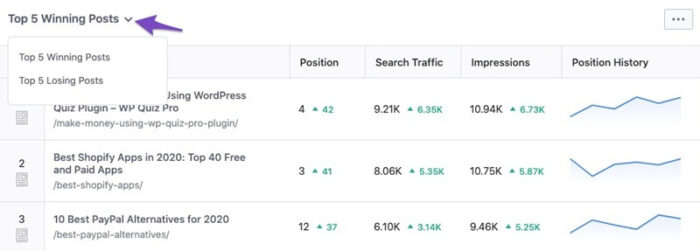
Rank Math Analytics helps you quickly find the top five winning and losing posts on your website. It compares changes in search positions over the last 30 days and lists the posts that gained or lost the most positions.
The winning posts show which content is moving up in Google, while the losing posts highlight pages that have dropped. This gives you a quick way to spot content that deserves attention.
Rank Math also provides a graph showing how these posts have performed over the past few weeks. You can view additional metrics such as search position, search traffic, impressions, clicks, CTR, and position history.
For example, if an important post appears in the losing list, check its ranking keywords and update the content. For winning posts, you can study what is working and apply similar improvements to other pages.
AI Visibility
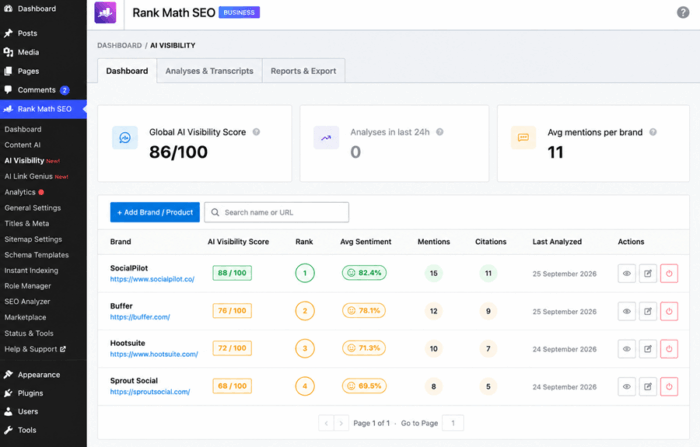
AI search is changing how people discover brands, products, and websites. Rank Math’s AI Visibility helps you see how your brand appears in AI-generated answers, rather than only checking traditional Google rankings. It tracks your brand or product across supported AI platforms and shows how frequently it is mentioned, how it is positioned, and how AI describes it.
Add your brand or product, select the country you want to monitor, and review the AI-generated queries Rank Math uses for testing. The tool then analyzes the responses and reports mentions, citations, sentiment, rankings, and visibility trends.
The AI Visibility Score combines several signals into one score, giving you a quick way to track changes. You can also compare your brand with competitors, view full AI response transcripts, and export your data for reporting or further analysis.
Rank Math currently supports ChatGPT and Google Gemini.
For SEO professionals, Rank Math’s AI Visibility adds another layer to traditional rank tracking. You can see not only where your pages rank in search, but also how your brand appears in AI-generated answers.
Keywords

The Keywords section in Rank Math Analytics gives you a quick view of how your keywords are performing in Google.
It tells you keyword positions grouped into ranges, such as Top 3, 4–10, 10–50, and 51-100, using a chart. This helps you find keywords that are already performing well and those that may need more work.
You can also see Top Winning Keywords that have moved up and Top Losing Keywords that have dropped in rankings. Next, you will see the ranking positions for each keyword, including impressions, clicks, rank, and ranking history.
Keywords sitting in positions 4–10 may be close to reaching the top three results. You can use these insights to improve existing content, update keywords, and find new SEO opportunities without leaving your WordPress dashboard.
Rank Tracker
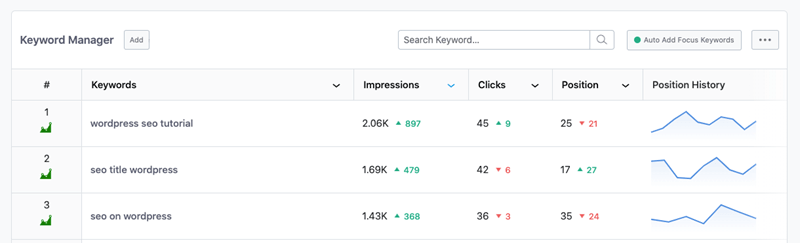
Rank Math’s Rank Tracker helps you monitor the performance of keywords you want to follow. You can add keywords manually or automatically import focus and secondary keywords from your posts. Once added, Rank Math displays key metrics such as impressions, clicks, CTR, current position, ranking changes, and position history.
You can also sort the keyword list by clicks, impressions, CTR, position, or keyword name. The Rank Tracker includes a graph that lets you compare the ranking history of selected keywords over time.
If you are targeting “WordPress photography plugins”, you can add that keyword to Rank Tracker and check whether its position improves after updating your content. This makes Rank Tracker helpful for measuring the results of your SEO work without leaving your WordPress dashboard.
Rank Tracker is available as part of Rank Math PRO.
Rank Math Index Status
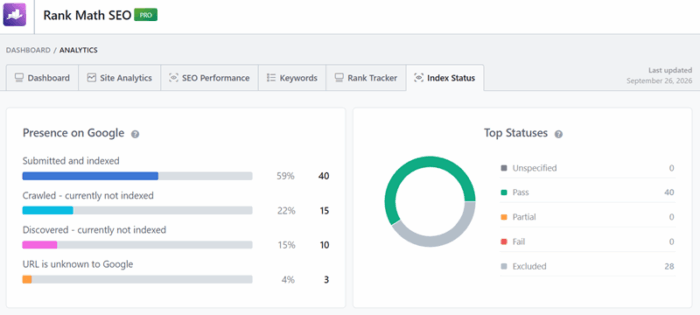
The Index Status tool in Rank Math Analytics shows whether your posts, pages, and custom post types are indexed by Google.
It also helps you understand why a URL may not appear in search results. You can see statuses such as Pass, Partial, Fail, Excluded, and Unspecified, along with details about indexing, crawling, robots.txt, and page fetching.
Rank Math gets this information from Google’s URL Inspection API, so you can check indexing data without leaving WordPress.
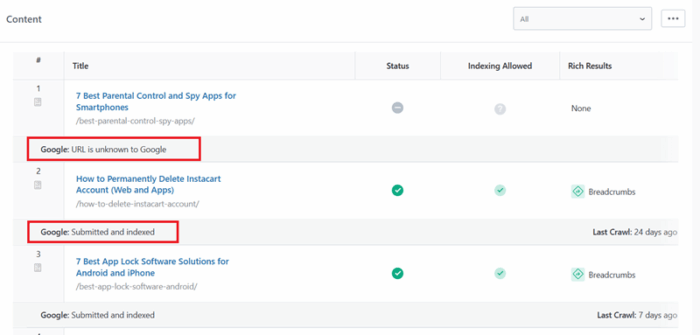
Scroll down to locate the status of your individual posts. Each post link appears with its indexing status, whether indexing is allowed, rich results, and its presence in Google search results.
If a page has an indexing issue, the report helps you identify and fix it. Our guide to common Google indexing issues and fixes walks you through this process. Then, submit your URL via Rank Math’s Instant Indexing tool or Google Search Console.
Bonus: AI Link Genius
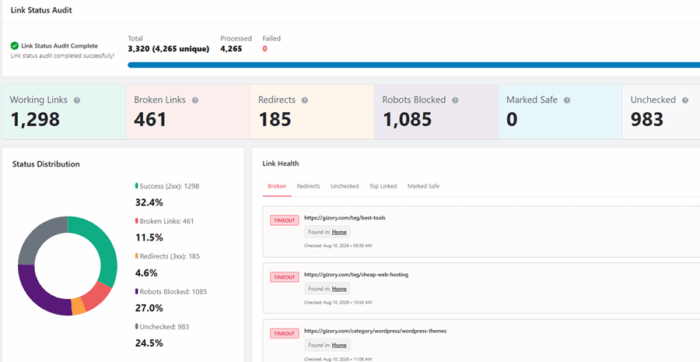
AI Link Genius is Rank Math’s internal linking tool for WordPress. It helps you find linking opportunities, fix broken links, and improve the way pages connect across your website. You can scan your site to find weak internal link coverage, orphaned pages, redirects, blocked URLs, and other link issues.
Rank Math also provides AI-powered link suggestions (Content AI) while you write. It analyzes your content and suggests relevant pages and anchor text for internal links. You can review the suggestions before adding them.
AI Link Genius also supports bulk link updates. You can update both anchor texts and URLs, and set link attributes in bulk.
Rank Math’s Keywords Map is really a time saver. Enter a keyword and assign a URL to it. For instance, Bluehost. Set maximum links per post. If you mention Bluehost somewhere in your content, Rank Math will automatically assign a link to it. The link will appear within 1-2 minutes after the content is published.
Finding both internal and external broken links is another advantage. Once you find them, use Bulk update to replace your dead links with new ones.
AI Link Genius is a great tool that helps you maintain a cleaner site structure and make it easier for search engines to crawl your content.
How to Find Underperforming Content with Rank Math
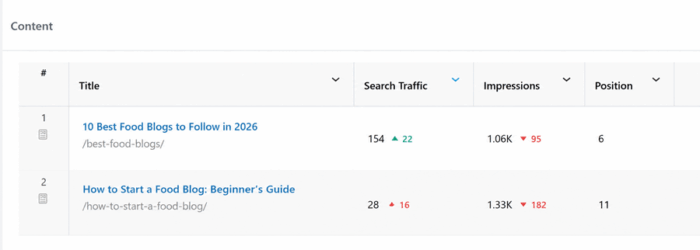
Rank Math Analytics can help you find pages that get good impressions but poor clicks. These pages are already appearing in search results, but their traffic is lower than expected. Start by checking the ranking position, CTR, and SEO score of the page.
If the page has potential, update the content with fresh information and add relevant keywords. You can also add an FAQ section to answer common questions. Add more internal links from your high-traffic content to help users discover the page.
Next, review the title and meta description. Make them more relevant and appealing to searchers. Check the page speed as well, especially if the page loads slowly on mobile devices.
After updating the article, share it on your social media profiles and include it in your email newsletter. Keep monitoring its impressions, clicks, CTR, and ranking position in Rank Math Analytics to see whether the changes improve its performance.
How to Use Rank Tracker to Track Your Custom Keywords

Rank Math’s Rank Tracker lets you track specific keywords that are important to your SEO strategy. You can track commercial keywords such as “Semrush review,” important informational keywords such as “how to install WordPress themes,” and brand-related keywords that include your company or website name.
Rank Math can also automatically add all focus keywords from your existing posts. When you enable the auto-add option, new focus keywords added to your posts are also added to Rank Tracker.
To add a custom keyword, go to Rank Math SEO → Analytics → Rank Tracker → Keyword Manager → Add, enter the keyword, and add it to your tracking list. Rank Math then pulls ranking details from your connected Search Console and Analytics data.
You can monitor impressions, clicks, CTR, current position, ranking changes, and position history. Checking these changes regularly helps you spot keywords that are losing visibility and update your content before the drop becomes bigger.
How to Use Rank Math Analytics to Improve Traffic
Rank Math Analytics gives you data that can help you find where your website is losing traffic and where there is room to grow.
Start by finding pages with high impressions but low CTR. These pages already appear in Google, so improving the title and meta description may help you attract more clicks.
Next, look for keywords around page two, especially those ranking between positions 11 and 20. Updating these pages, adding relevant information, and improving internal links may help them move closer to the first page.
Review your losing keywords to see which search terms have dropped. Then check losing posts to find pages that have seen a noticeable ranking decline.
Also, check the Index Status for pages that Google has not indexed. Fixing crawling, indexing, or canonical issues may help eligible pages appear in search results.
Finally, monitor AI traffic and visibility if your Rank Math setup provides these reports. This gives you another way to understand how your brand or content appears in AI-generated answers.
Use these checks regularly rather than looking at traffic numbers alone.
How Frequently Should You Check Rank Math Analytics?
You do not need to check Rank Math Analytics every day. For most websites, checking your main SEO data once or twice a week is enough. This gives Google enough time to collect new data and makes ranking changes easier to spot.
If you publish content frequently, you may want to check the dashboard a few times each week. Look for changes in search traffic, impressions, clicks, CTR, keywords, and average position. Pay extra attention to pages or keywords that suddenly lose traffic or rankings.
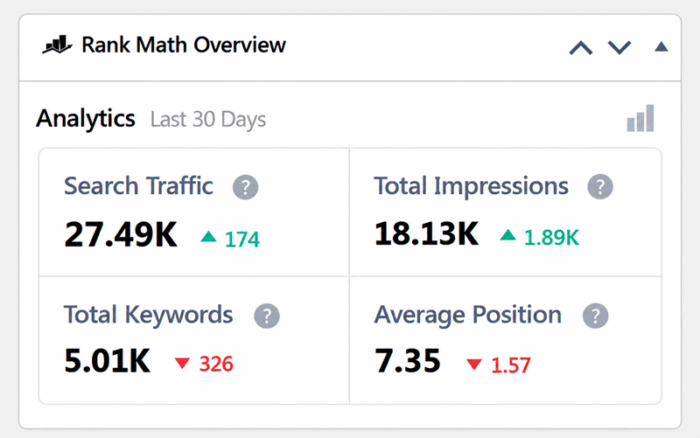
You can also use Rank Math’s Analytics dashboard widget for a quick overview. The widget appears in your WordPress dashboard and gives you a snapshot of important metrics such as search traffic, impressions, keywords, and average position. You do not need to open the full Analytics section every time you want to check your traffic.
For a weekly review, look deeper into winning and losing keywords, losing posts, indexing issues, and ranking trends. Compare the results with the previous period to see whether your SEO work is moving in the right direction.
The goal is not to watch the numbers constantly. Use Rank Math Analytics regularly to spot changes and take action when something needs attention.
Why Rank Math Analytics Data May Not Match Google Analytics
It is normal to see some differences between Rank Math Analytics and Google Analytics. The two tools collect and process data in different ways.
Rank Math Analytics uses data from Google Search Console, Google Analytics, and your WordPress website to create its reports. Google Analytics mainly focuses on visitor activity on your website, such as sessions, users, page views, and traffic sources.
For example, Rank Math may show search clicks from Google Search Console, while Google Analytics may report the visits that reached your website after those clicks. These numbers will not always be identical.
Tracking settings also affect the data. Ad blockers, cookie restrictions, browser settings, consent tools, JavaScript issues, and tracking code problems may prevent Google Analytics from recording some visits.
There can also be a delay before data appears in each system. Date ranges, filters, attribution methods, and reporting time zones may also cause differences.
When comparing the two, make sure you are checking the same date range and similar metrics. Use Rank Math mainly to understand your SEO and search performance, while Google Analytics is better for studying what visitors do after they reach your site.
A small difference is usually not a reason for concern. Look for large or sudden gaps that continue over time.
Rank Math Analytics Frontend Stats Bar

Rank Math provides an Analytics Stats Bar for logged-in administrators.
It places key performance information directly on the frontend while you browse each post.
You will see information such as:
- SEO score
- Content AI score
- Search traffic
- Search impressions
- Average position
- Index status
- PageSpeed information
The bar is not shown to normal visitors. It gives site owners a quick way to inspect a page without constantly moving between the frontend and WordPress admin.
If you prefer a clean frontend while working, you can disable the feature through Analytics settings.
Rank Math Analytics: Free vs PRO
Rank Math Analytics offers a useful set of SEO reports in the free version, but Rank Math PRO adds deeper data and tracking features. The free version mainly uses Google Search Console data for its Analytics reports. It shows metrics such as search clicks, impressions, ranking keywords, and average position.
PRO adds Google Analytics data, giving you the Search Traffic metric and more detailed traffic insights. It also includes features such as AI visibility, Rank Tracker, Top Winning and Losing Keywords, Top 5 Winning and Losing Posts, and Site Analytics.
The Rank Tracker is particularly useful if you want to monitor a selected list of keywords. You can add custom keywords, check their position changes, view clicks, impressions, CTR, and see their ranking history.
PRO also provides additional Index Status reports and can fetch up to 6,000 URLs per schedule, compared with 2,000 in the free version.
For a small website, the free Analytics features may provide enough data to understand basic SEO performance. PRO becomes more relevant when you need keyword tracking, detailed content analysis, traffic sources, and deeper SEO monitoring.
Final Thoughts
Rank Math Analytics gives you a simple way to understand how your WordPress website is performing in Google search results. Instead of checking several reports separately, you can view important SEO data from your WordPress dashboard.
You can use it to monitor search traffic, impressions, clicks, keywords, CTR, and average position. Features such as Rank Tracker, Index Status, winning and losing posts, and keyword reports help you find problems and new opportunities.
The key is to use the data to guide your next action. If a page gets impressions but few clicks, improve its title and meta description. If a keyword drops, review and update the related content. If a page is not indexed, investigate the indexing issue.
You do not need to check Analytics constantly. A weekly review, followed by a deeper monthly check, is enough for most websites.
Whether you use the free version or Rank Math PRO, make Rank Math Analytics part of your regular SEO routine. Watch the trends, improve your content, and keep measuring the results.